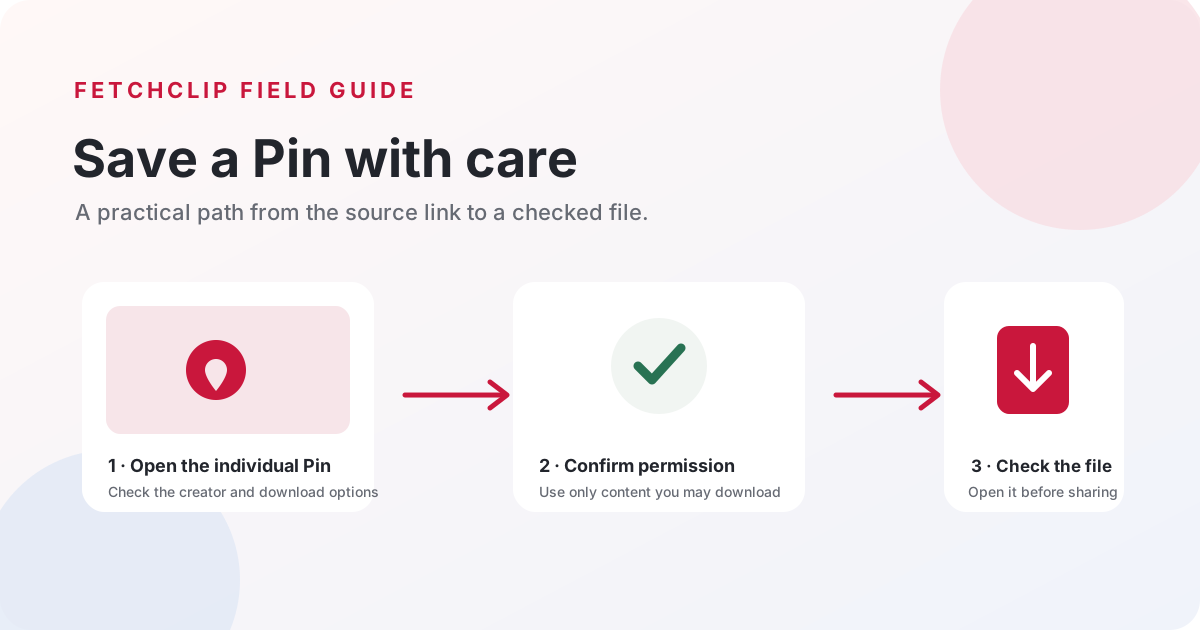
Quick answer: Open the individual Pin, check whether Pinterest offers a built-in download, and use that option when it is available. Download only material you own or have permission to save and use. If you use FetchClip, paste one public Pin link, review the rights confirmation, and check the resulting file before relying on it.
Source check: Pinterest’s image-download and creator-controlled video-download instructions were checked against its Help Center on 26 October 2026. Menus can vary by device, account, and Pin type; use Pinterest’s current instructions when your screen differs. Report an outdated step.
Saving a Pin versus downloading a file
On Pinterest, saving usually means adding a Pin to one of your boards so you can find it again inside Pinterest. It does not necessarily place a copy of the image or video in your device’s storage. A download creates a file on your phone or computer. That file can be available when you are offline, but it is still subject to the creator’s rights, Pinterest’s settings, and the rules that apply where you live.
This distinction helps prevent a common mix-up. If your goal is to collect an idea for later, saving the Pin to a board is often the simplest and most respectful choice. If you need an offline reference, a presentation draft, or a personal copy of your own work, look for a download control. Keep the Pin’s source link with the file so you can return to the original, check for changes, or find the creator.
Pinterest’s Help Center explains that some image Pins can be downloaded directly, while not all Pins have that option. Its instructions also distinguish downloading an image to your device from saving the Pin to a board. See Pinterest’s image-download instructions for current steps.
Check Pinterest’s own options first
Open the Pin itself rather than a search page, profile, or board. On an image Pin, open the menu beside or below the image and look for Download image. The exact button position can vary between the Pinterest app, mobile browser, and desktop layout. Pinterest also says an image download may be available from the home feed menu. If the button is missing, try the Pin’s own page or another supported device layout, but understand that some Pins cannot be downloaded.
Video Pins have different controls. Pinterest says creators can choose whether people may download their full-screen video Pins; the setting applies to full-screen, vertical video Pins and may add the creator’s username as a watermark. When Pinterest provides a download option, it is the clearest way to respect the creator’s settings. Read the current Pinterest guidance on video Pin downloads because menus and product behavior can change.
If you only need to keep an idea inside Pinterest, use Save. If a creator has disabled downloading or the content is private, removed, or otherwise unavailable, do not treat a third-party service as a way to override that choice. Ask the creator for an authorized copy or use another source they provide.
Confirm permission before saving
A Pin being publicly visible does not automatically make its image, video, music, artwork, or people free to reuse. Public access and permission are different things. Before downloading, ask yourself who created the material, what you plan to do with the file, and whether you have the rights for that particular use. Permission to keep a personal reference may not include permission to repost, edit, sell, use in an advertisement, or include in a public project.
If it is your own work, confirm that the file is yours to copy and that any separate elements inside it—such as music, photographs, logos, or a collaborator’s footage—are also cleared for your intended use. If another person made it, get permission from the rights holder when needed. Keep the message or license that explains what was allowed. Credit is useful, but credit alone does not replace permission.
Pinterest’s Terms of Service say users remain responsible for the content they post and must respect others’ intellectual-property rights. FetchClip is independent of Pinterest; its confirmation prompt records your declaration, but it cannot verify ownership or grant a license. If you are unsure, do not download or reuse the file. This guide is practical product information, not legal advice.
Use FetchClip step by step
FetchClip is a browser-based helper for a supported public Pinterest image or video Pin. Try Pinterest’s own download control first. If you decide to use FetchClip, follow this sequence:
- Copy one Pin’s link. Open the Pin and use its share or address-bar URL. A link to a profile, board, search results, or a collection is not the same as an individual Pin. A shortened
pin.itlink may work if it resolves to one supported public Pin. - Open the downloader. On FetchClip, paste the link into the box labelled “Paste a Pinterest Pin link.” Check that the address is the one you intended to submit before continuing.
- Wait for the source check. FetchClip asks its server to inspect the public Pin information and identify an available image or MP4 video. It does not ask for your Pinterest password. If the Pin is private, restricted, removed, or not supported, there may be no file to retrieve.
- Read the rights prompt. Confirm only when you own the content or have the necessary permission for this download. Choosing “No” cancels the transfer. The confirmation is your statement; it is not a rights check performed by FetchClip.
- Save and inspect the result. Use the download control only after confirmation. Wait until the browser reports that the file has finished, then open it and verify that it is the expected Pin. If the result looks wrong or incomplete, delete the local copy and try an authorized source instead.
FetchClip does not improve resolution, remove watermarks, or turn an image into a video. It returns an available supported source file. The current service limits transfer size to 100 MiB and may rate-limit requests. If a link expires, start again from the individual Pin and repeat the permission check rather than reusing an old download URL.
Check the format, quality, and saved location
Image Pins can be delivered in formats such as JPEG, PNG, WebP, or GIF, depending on the source. A supported video is delivered as an available MP4. Do not assume that every Pin has a high-resolution original or that the saved format can be changed by the downloader. A screenshot of a video frame is not the same as the original video, and changing a filename extension does not convert a file.
After a download, check the browser’s download status and open the file. Look for the expected subject, orientation, duration, and image dimensions. If you intend to share it, verify that the file opens in the app your recipient will use. Keep the source URL in your notes. When quality matters, compare the local file with the Pin and the creator’s own original before using it in a design or presentation.
On Android, files commonly appear in the browser’s Downloads list or the device’s Downloads folder; the exact location depends on the browser and settings. On iPhone or iPad, Safari downloads are generally managed through the browser’s download control and the Files app, while other browsers may save differently. Pinterest’s Help Center notes that image files can appear in Photos, Gallery, or the default download location depending on the device. If you cannot find the file, open the browser’s downloads list before submitting the Pin again; this avoids duplicate transfers.
For an image, check that the file is not just a small preview when you expected a full-size image. For a video, make sure playback starts, audio is appropriate for your permitted use, and the duration matches what you expected. A player may take a moment to load, so let it finish before deciding the file is broken. If the file opens only in one app, try a trusted media viewer rather than installing a random “codec” or download helper.
Understand privacy and file safety
When you paste a link into FetchClip, the link is sent to FetchClip’s server for processing; this is not a local-only browser tool. Its privacy policy describes the temporary download record, session cookie, transfer handling, hosting logs, and advertising technologies. Do not submit a private Pin, an account-only URL, a confidential client reference, or anything you would not want processed by the service.
Never enter your Pinterest password, one-time code, or session cookie into a download site. FetchClip does not need your Pinterest login. If a page claiming to be a downloader unexpectedly asks you to sign in, install an extension, enable notifications, or run a separate file, close it and return to Pinterest’s official app or website. A normal image or MP4 download should not require a password or an unknown program.
Keep your device’s browser and operating system up to date, download only the file type you expect, and do not open an executable file that was presented as an image or video. If you use a shared computer, clear the local download only if you no longer need it, then sign out of any accounts you used. FetchClip’s privacy notice explains that closing a page does not delete a file already saved on your device.
Troubleshoot a download without repeating mistakes
The link is rejected
Go back to Pinterest and open the exact Pin. Copy its share link or address-bar URL, not a search page, board, profile, or link to a different platform. If you used a shortened link, check that it opens the correct public Pin in your browser. A private, deleted, age-restricted, or login-only item cannot be made available by retrying the same URL.
The download option is missing
For an image, try opening the Pin itself and checking its menu, then try Pinterest’s mobile or desktop browser if you were in the app. Pinterest says some Pins cannot be downloaded. For full-screen video Pins, the creator’s download setting may determine whether Pinterest presents a download option. Respect that setting; ask the creator for a permitted copy if you need one.
The session expired or the transfer stopped
FetchClip uses a temporary, browser-bound session. If the result says the link expired, reload the public Pin and begin again from the downloader. Confirm your rights again for the new transfer. If the browser reports a network interruption, check your connection and storage, then retry once. Repeated rapid requests can meet rate limits and will not make a restricted source work.
The file is missing, blank, or the wrong quality
Check the browser’s Downloads list, available device storage, and the file’s actual type. On a phone, also check the browser’s permission to save files or photos. If the file is incomplete, do not rename it or assume it can be repaired by changing its extension. FetchClip uses an available source and does not upscale it; the creator’s original or Pinterest’s built-in option may be better. See the troubleshooting FAQ for FetchClip-specific errors, file limits, and expired-session guidance.
Choose a responsible next step
For a quick offline reference, a Pinterest board may be enough. For your own content, keep the source file you uploaded so you are not relying on a compressed copy. For someone else’s work, ask the creator which copy and use they approve. If the creator has a website or portfolio, use its download or licensing page instead of guessing from a Pin.
Before publishing a saved image or clip, check the permission you received, preserve any requested attribution, and verify the platform and project rules. A download does not itself grant commercial, editing, redistribution, or sublicensing rights. This matters when a video includes separate music or when an image contains a logo, artwork, identifiable person, or third-party photograph. If the permission is unclear, leave the file private and ask first.
For Pinterest’s changing product controls, follow its current image-download help and Terms of Service. FetchClip is an independent utility, not an official Pinterest product. Its workflow cannot bypass creator settings, platform rules, or someone else’s rights.
Common questions
Can I download any Pin?
No. Pinterest says some image Pins can be downloaded and some cannot. Video availability can depend on the creator’s settings and the Pin format. A third-party tool may also fail to retrieve an item. If the option is unavailable, treat that as a limit and ask the creator for an authorized copy.
Does saving a Pin to a board put it on my phone?
No. Saving generally keeps a reference inside Pinterest so you can return to it. Downloading creates a local file. Pinterest describes these as different actions in its Help Center.
Why does FetchClip ask me to confirm my rights?
The prompt makes the permission requirement visible before the server completes a transfer. It cannot establish whether you own the content; only you can make that declaration truthfully. Choose “No” or leave if you are unsure.
Will the downloaded file have the same quality as the original?
Not necessarily. The source Pin may contain a compressed or resized copy, and FetchClip can only return an available supported file. It does not restore detail or improve resolution. Ask the creator for the original when quality is important.
Where did my download go?
Check the browser’s download list first. The file may be in Downloads, Files, Photos, or Gallery depending on your device and browser settings. If it is not there, confirm that the transfer finished and that the browser can save files to your device.
Does downloading give me the right to repost the Pin?
No. Permission to save a copy and permission to publish or adapt it are not necessarily the same. Confirm the intended use with the rights holder and follow any license or attribution terms. This article is not legal advice.
Official references: Pinterest: Download an image · Pinterest: video Pin download settings · Pinterest: Terms of Service.